Side-loading an Android app moves three checks that the Play Store would normally make for you onto the person holding the phone. None of those checks is "the install dialog tells you the publisher." The dialog tells you the developer-supplied label. Treating that label as a verified publisher identity is the mistake this explainer is written to remove.
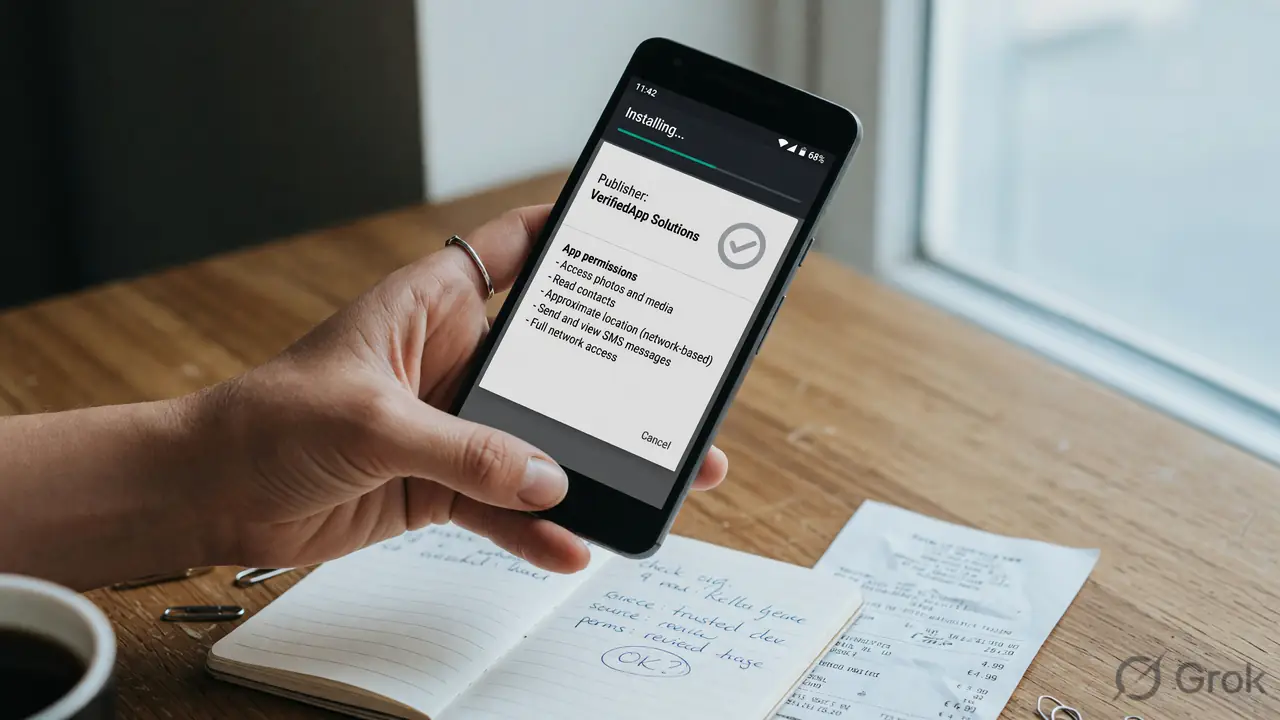
What the install dialog actually displays
The default Android package-installer screen for a side-loaded APK on Android 10, 11, 12, 13, 14 and 15 is short. At the top it shows the icon, the application label and the package name (for example, com.example.app). Below the icon it shows the developer-supplied app name again, and the file size and the version number from the APK manifest. There is no human-readable verified publisher line, and no signed certificate fingerprint.
The label on this screen is whatever the developer typed into the manifest field android:label. Android does not check that label against any registry. An impersonator can write any name there. The same applies to the "About" panel inside Settings › Apps: the app's display name is the manifest label, the package name is taken from android:package, and the "version" string is taken from the manifest's version field. None of those values is independently verified by the operating system.
The three names you can read, and which one you can actually check
The same install creates three distinct identifiers, and they are easy to confuse. Each one comes from a different part of the manifest, and only one of them is cryptographically signed.
The app label is the name you see on the icon. It is a string the developer types into android:label, usually pulled from a string resource. It can be anything, including the name of a brand the developer has no relationship with. The package name is the technical identifier such as com.brandname.android. It is harder to fake at scale because Google Play enforces uniqueness, but Android itself does not block an APK that uses a near-collision with an existing app on the same device. The signing certificate is the cryptographic identity that ties the APK to the developer's private key. It is not normally shown on the install dialog at all.
The implication is small but exact. If the install dialog shows the same name as the brand home page, that is a confirmation that the developer's label matches the page's label, nothing more. It is not a confirmation that the same entity signed both. The label is self-asserted; the package name is self-asserted; only the signing certificate is independently checkable, and it is not on the screen.
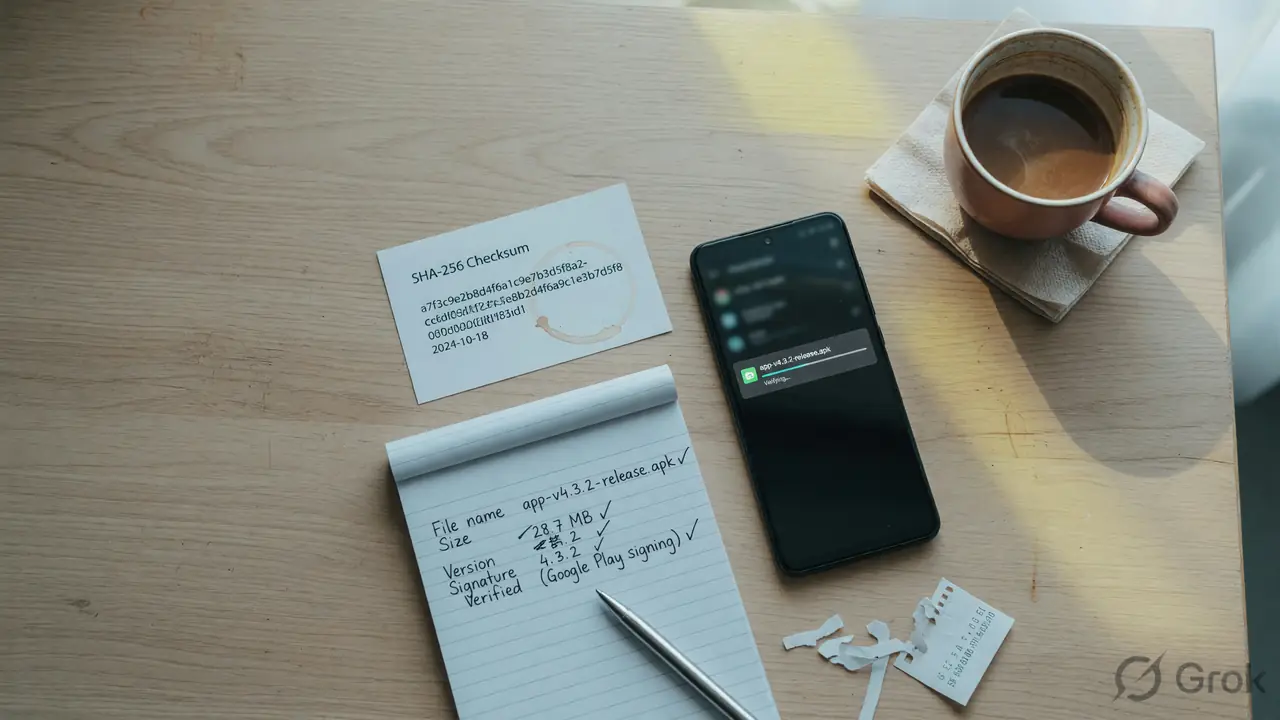
Where to find the signing certificate, if at all
Android's package installer does not display the signing certificate on the install screen. There are three honest routes to it, and each one is conditional on a tool or a publisher that actually publishes the value.
First, the platform's own version-log page. Some legitimate publishers publish a SHA-256 fingerprint of the signing certificate alongside each APK release. If the platform publishes one, the only honest check is to compute the SHA-256 of the file you downloaded with a tool such as sha256sum on a desktop, or a known-verifiable Android file-hash utility, and compare it character-for-character. If the publisher does not publish a fingerprint, the procedure collapses, because there is no independently verifiable value to compare against.
Second, the developer-tools route. Android Studio ships apksigner as part of the command-line build tools, and the standard Java distribution ships keytool. A user with either tool installed can run apksigner verify --print-certs file.apk and read the certificate subject, issuer and SHA-256 fingerprint directly. This is the most accurate check, but it requires a desktop or an Android file-manager that can run external tools. It is not a casual on-phone check.
Third, the in-app identifier route. Some apps show their own certificate hash on an "About" or "Security" screen inside the app. This is meaningful only if the in-app display matches the developer-tools output and the publisher documents the expected value somewhere outside the app. A value that the app itself prints, and that the publisher does not independently state, is a self-asserted value and adds no verification.
Install-time versus runtime permissions
The install dialog lists a small, specific set of permissions: those declared as install-time in the APK manifest. On Android 10 and later this is a short list, and it does not include the permissions most readers worry about. The list does not include access to contacts, SMS, call log, location, microphone, camera or storage by default, because those permissions moved to runtime on Android 6.0 and have stayed runtime since.
A runtime permission is requested only when the app calls the relevant API. The first sign-in screen of an SMS-handling app is the place where READ_SMS and RECEIVE_SMS are requested, not the install dialog. A camera-first app asks for CAMERA when the camera button is tapped. A maps-style app asks for ACCESS_FINE_LOCATION when the location field is opened. The pattern is consistent across Android 10 through Android 15: the prompt arrives at the moment the app first needs the data, with a plain-language explanation written by the developer and shown above the Allow/Deny buttons.
This means the install dialog is the wrong place to refuse a contact-reading app. The right place is the first prompt that arrives during use. A reader who accepts the install and then refuses the runtime prompt has refused the actual data access. A reader who refused the install dialog believing it would block the contact list has blocked nothing; the app would have requested access at the first sign-in anyway, and a refusal at install time simply stops the install without changing what the runtime prompt would have asked.
Special access permissions live elsewhere
Several permissions that look alarming on an APK manifest do not surface on the install dialog and are not granted at install time. They are "special access" permissions, and they are granted individually through Settings › Apps › [App name] › Special access. The list and the menu path have shifted slightly across Android versions, but the underlying categories have been stable.
Display over other apps (SYSTEM_ALERT_WINDOW) is requested by the app calling the relevant intent, then routed through Settings › Apps › Special access › Display over other apps on most Android 10+ devices. Accessibility services are turned on through Settings › Accessibility › Downloaded services, with the operating system showing a long warning before activation. Notification access (ACCESS_NOTIFICATION_POLICY) sits behind Settings › Apps › Special access › Notification access. Usage access (PACKAGE_USAGE_STATS) and device admin sit behind their own panels. None of these is granted by accepting the install dialog; each is granted by a separate toggle, and each has its own confirmation screen.
A reader who wants to know whether a side-loaded app has been granted any of these has to visit Settings › Apps › [App name] › Special access after install, or scan the device-wide list under Settings › Apps › Special access. The install dialog does not show these states; the post-install review does.
What checksum and signature procedures can and cannot do
A published SHA-256 fingerprint is the strongest single signal a publisher can offer, because it ties the file to a key that only the publisher holds. The procedure is conditional on three things being true. The publisher must publish the expected SHA-256 alongside the file, in a place outside the install path (a separate page, an email, an in-app receipt). The reader must compute the SHA-256 of the file as downloaded, using a tool they trust. The two values must match exactly, character-for-character, with no whitespace difference.
What this procedure does not do. It does not prove that the publisher is the brand on the home page. A malicious developer can publish a SHA-256 alongside a malicious APK and the math still works. It does not prove that the APK is benign. It proves only that the file on disk is the file the publisher signed. The trust is in the publisher, not in the hash. If the publisher is unverified, the hash is a number with no referent.
What the install dialog can never do. It cannot tell you whether the publisher is the brand on the home page. It cannot tell you whether the permission list at runtime will match the offer page. It cannot tell you whether the APK has been repackaged with additional code after signing. Those checks live outside the install dialog entirely: the home page for the brand identity, the runtime prompts for permission use, and the developer's signing key for integrity.
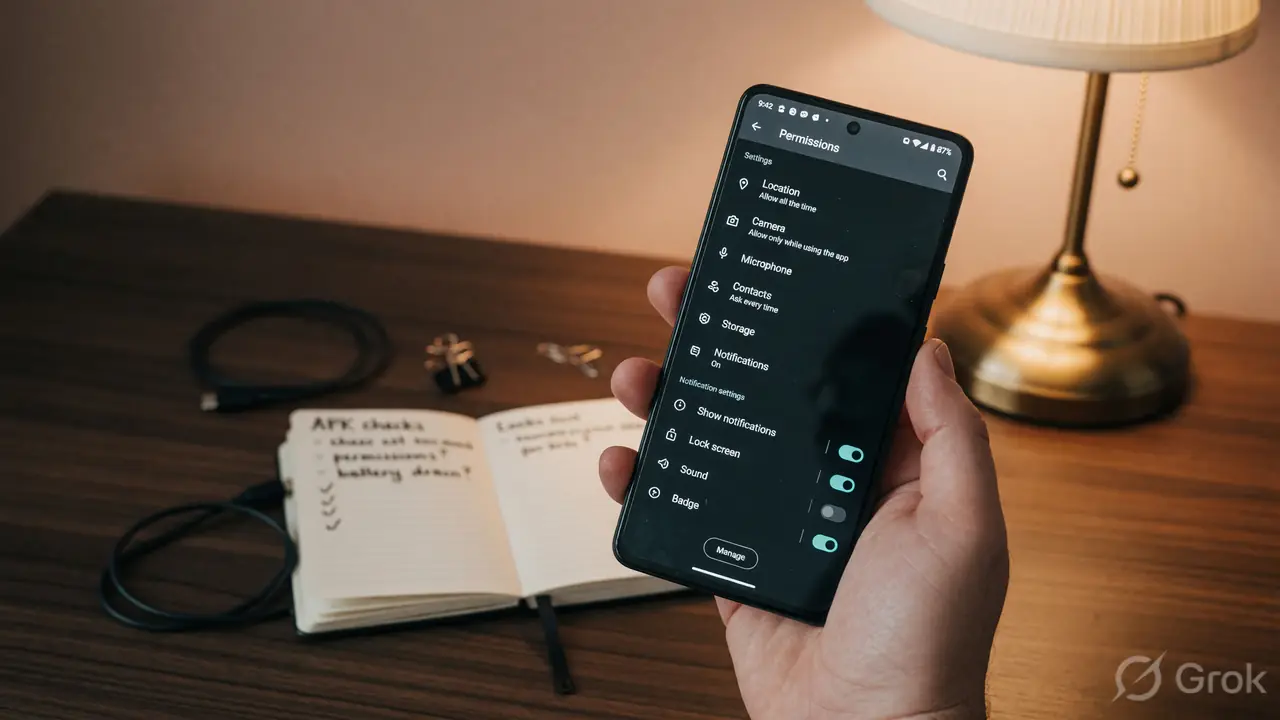
The reading order we actually use
The five questions below are what this desk asks before tapping install on a side-loaded APK. None of them relies on the install dialog to confirm a publisher identity. Each one points to a place where the answer is honestly available.
Where did the file come from, and is the URL one I typed or one I trust? The source URL is the single strongest signal a reader controls. A file from the platform's own address is a different object from a file from a search-result link or a forwarded message, even when the two files share a file name. The brand home page should be reached by typing the address, not by following a link.
Does the developer label on the install dialog match the brand on the home page? A close spelling, a missing word, a new top-level domain, a label that is the brand name plus a suffix (such as "Plus" or "Pro") is a reason to stop. The match has to be exact, and it has to be checked against the page reached by typing the address, not the page that produced the link.
What is the install-time permission list, and is it consistent with the offer? The install-time list is small and should map to the platform's described purpose. A reader who cannot map a permission in the install list to a feature on the offer page has found a permission that should not be there, and the honest move is to leave the install screen without proceeding.
Where will the runtime permission prompts appear, and what will they ask for? The runtime prompts arrive during use, not at install. The first sign-in, the first camera tap, the first location request are the points where access is granted. A reader who wants to refuse contact, SMS or location access should plan to refuse those prompts at the moment they appear, and uninstall the app if a prompt appears that does not match the offer page.
Has the publisher published a SHA-256 fingerprint, and does the file's hash match? The check is conditional. If the publisher has not published a fingerprint, the file's hash is unverifiable, and the honest answer is "I cannot compare this file to a known-good value." If the publisher has published one, the comparison has to be exact. A near-match is a fail.
What this desk will and will not claim
This explainer is a reading aid for what the Android package installer actually displays on Android 10 and later. It does not name a recommended APK, a preferred download mirror, a checksum for any specific file, or a verdict on any specific brand. The reason is the same reason as for the rest of the desk's install notes: the Android ecosystem changes, the publisher list changes, and any number published on a given day is not a number that holds for the day a reader uses it. The reading order above is the durable part. The file names, the version strings, and the SHA-256 values are not.
The five reading questions are not a guarantee. They are the smallest set of habits that catches most problems, in the order they appear on screen. A reader who runs the five questions and still feels uncertain is not wrong. The install can wait, and the wait is cheaper than the wrong install.
Where this leaves the reader
The Android install dialog is one screen, and it shows what the developer put in the manifest, not a verified publisher identity. The reading habit that matches that reality is to treat the dialog as a label, treat the package name as a technical identifier, treat the runtime prompts as the actual permission surface, and treat any published SHA-256 as conditional on the publisher having actually published one. The rest of the routine lives outside the install dialog, in the post-install review and in the platform's own version log. The full install flow and rollback path sit on the APK download guide; the post-install review is in the app guide; and what to do when a side-loaded install does not look right lives on the customer care page.
Frequently asked questions
Does the Android install dialog show the publisher's name?
No. It shows the developer-supplied app label, the package name and the version. The signing certificate is not displayed on the install screen. The label is a string from the manifest and is not verified by Android.
How do I check the publisher of an APK, then?
The honest check is to run apksigner verify --print-certs file.apk from the Android SDK build tools, or keytool -printcert -jarfile file.apk, and read the certificate subject, issuer and SHA-256 fingerprint directly. Compare that fingerprint to any value the publisher publishes outside the install path.
Does the install dialog list every permission the app will request?
No. The dialog lists install-time permissions only. Sensitive permissions (contacts, SMS, call log, location, microphone, camera, storage) are runtime permissions on Android 6.0 and later and are requested at the moment the app calls the relevant API.
Where do "draw over other apps" or accessibility services get granted?
Through Settings › Apps › [App name] › Special access. The install dialog does not grant these, and refusing the install does not block them; they are toggled individually after install.
What if the install dialog shows the brand name exactly?
An exact match is a confirmation that the developer's label matches the home page label, nothing more. The signing certificate is still the only independently checkable identity, and it is not on the screen.
What is the simplest starting point for a side-loaded install?
The full install flow and rollback path are covered in the APK download section of this site. The post-install review is in the app guide, and what to do when a side-loaded install does not look right lives on the customer care page.